Changelog

Follow new updates and improvements to Adtool.

Track your team's launches in the new Activity tab
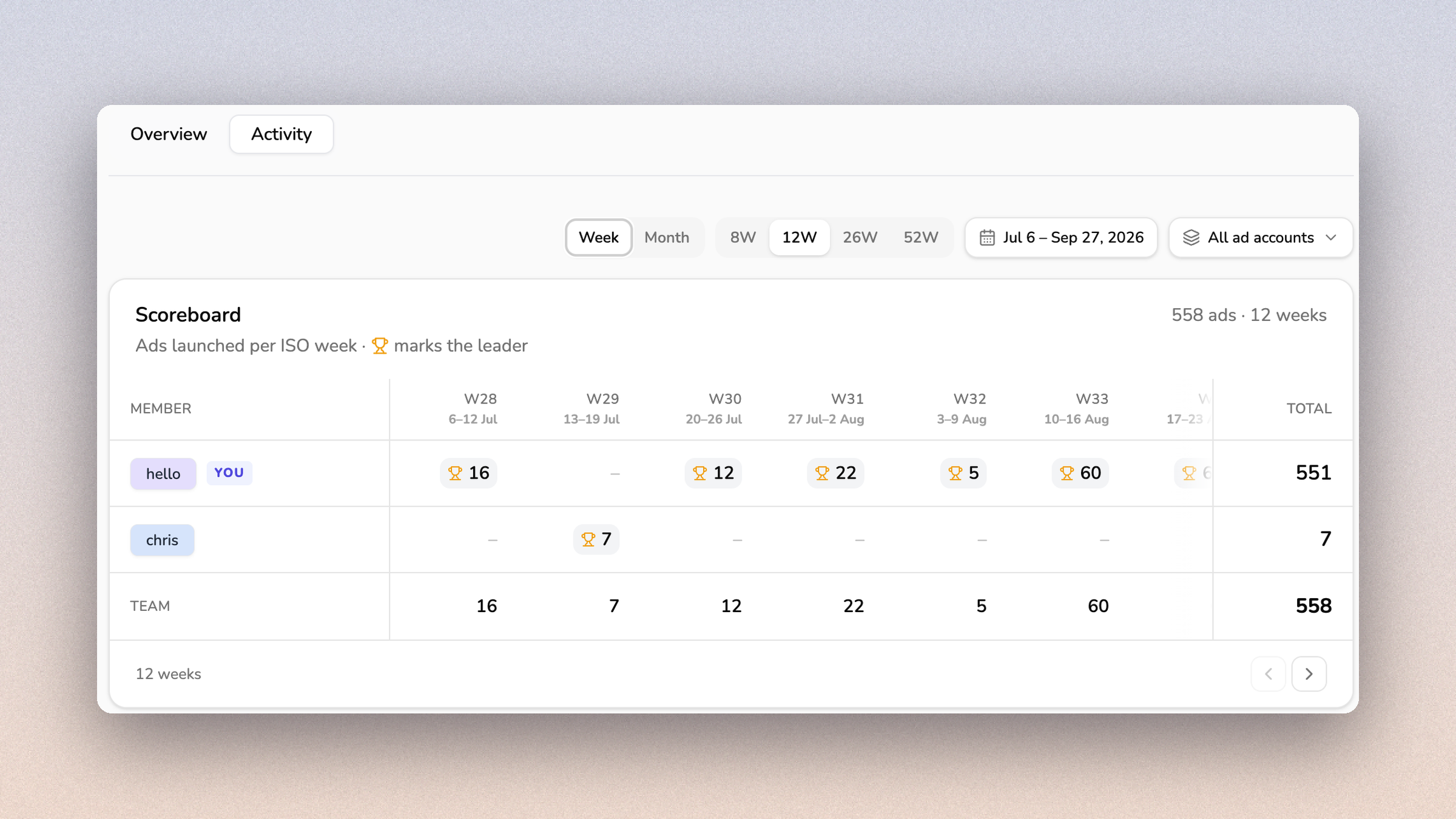
Your organization now has an Activity tab, so you can see how many ads each team member launched over time.

Open Organization → Activity and see ads launched per member by week or by month, with a trophy marking the leader in each period.

Only ads that were created in Meta count. Failed launches count as zero, and deleting rows from Launch History does not change the numbers. Members who have left the organization still show up for the weeks they launched in.

This should make it easier to see how launch work is spread across the team and to spot quiet weeks early.
Copy up to 20 ad set in one go

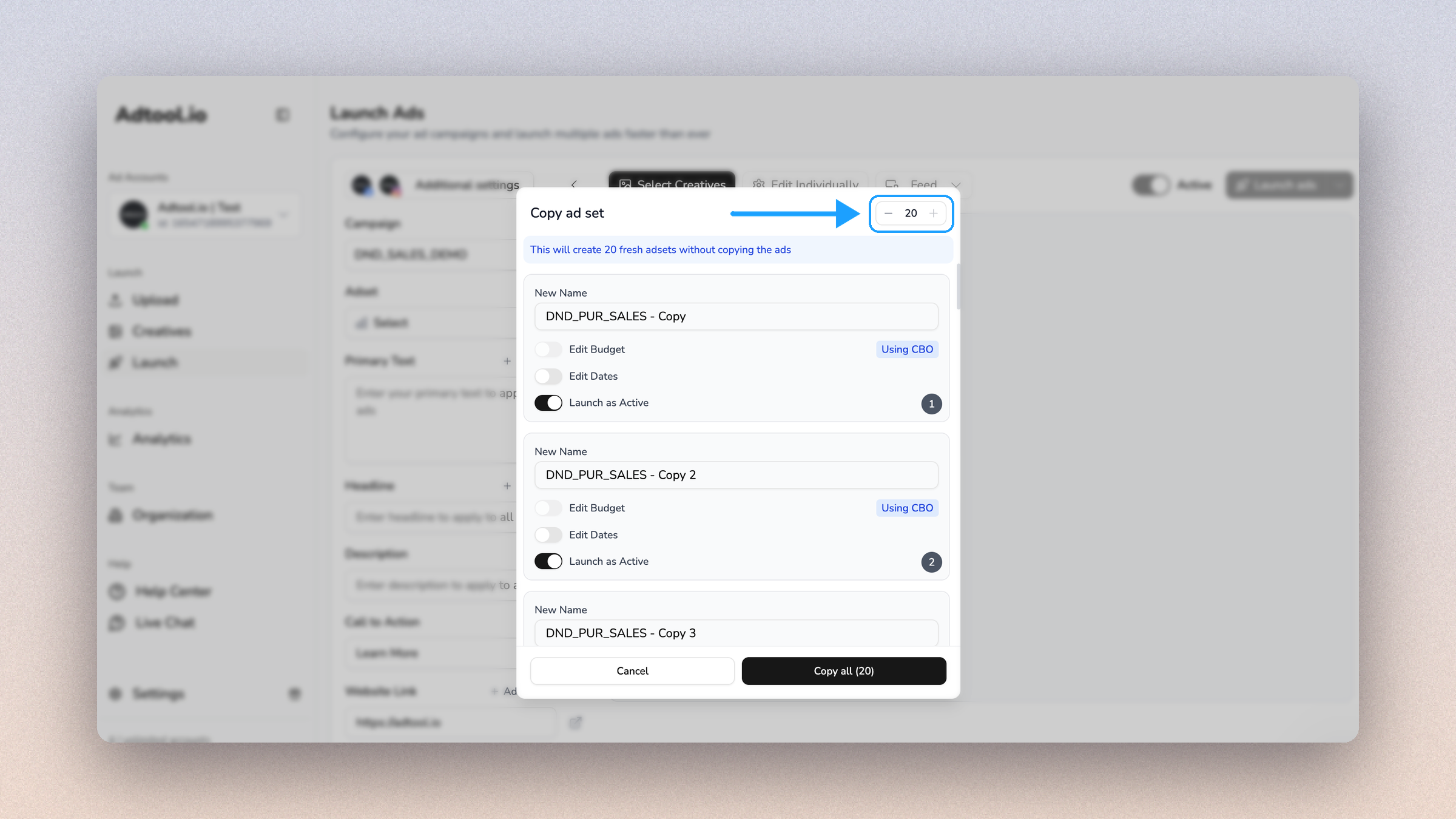
You can now create several copies of an ad set in one go, and the creation will happen in the background, so you can continue your work.

Open the ad set dropdown in the launch flow, click the copy icon on an ad set, and:

  • Use the + and − buttons at the top of the dialog to choose how many copies you want, up to 20

  • Give each copy its own name, budget, dates and status (active or paused)

  • Click Copy all, and the dialog closes right away

The new ad sets appear at the top of the ad set dropdown while Meta creates them. Finished copies turn green so you can spot them.

The copies are new, empty ad sets. Ads inside the original are not copied. If the campaign uses a campaign budget, the budget field stays off for the copies.

This should make it faster to set up ad sets that only differ in name, budget or schedule.

Import creatives from your existing library in Meta

You can now import creatives you already have in Meta straight into Adtool, without downloading and re-uploading them.

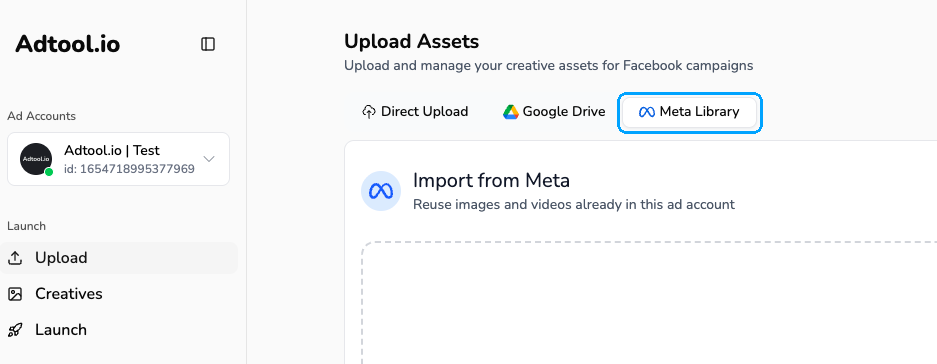
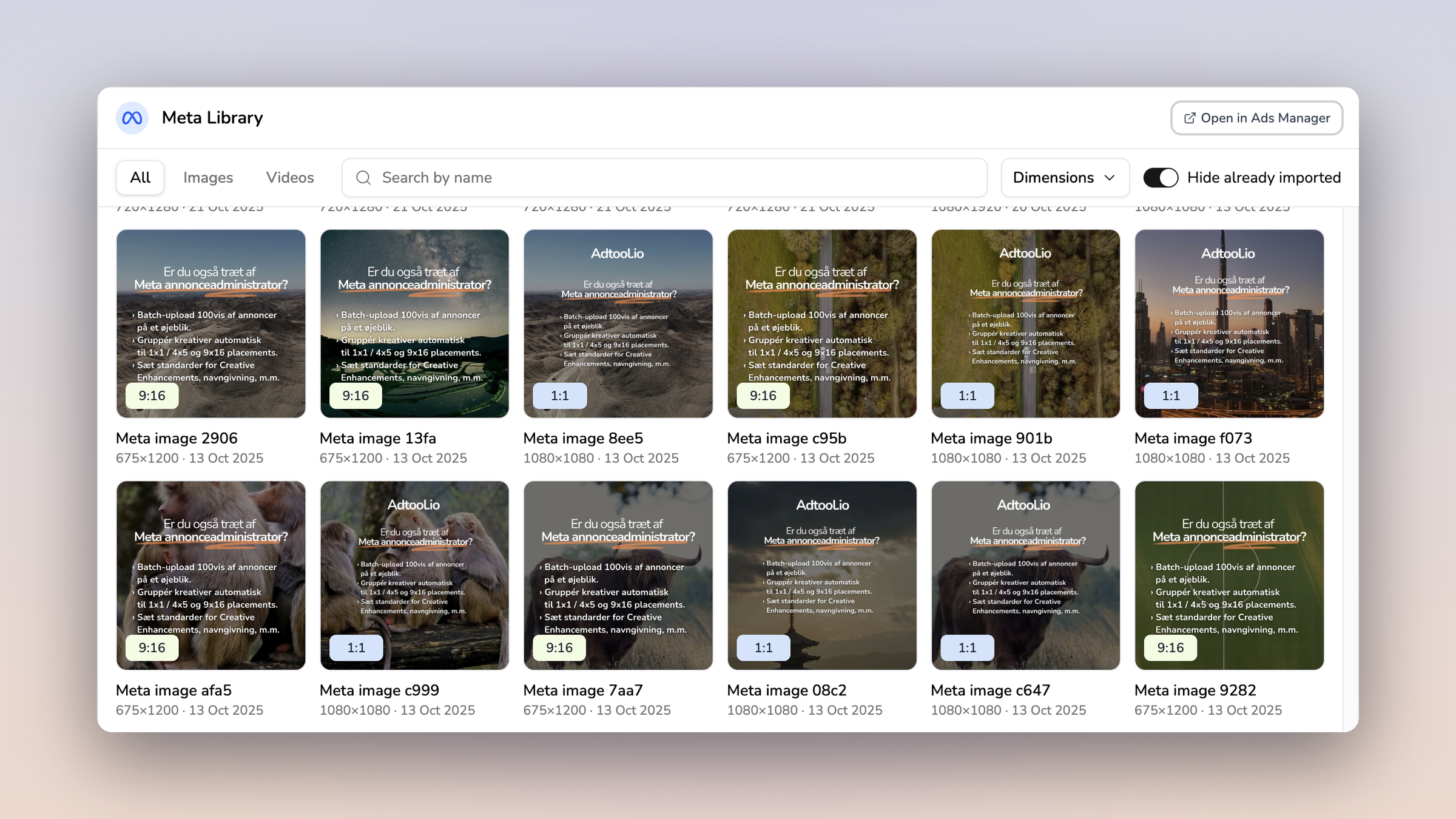
Meta Library is a third tab in the upload area, next to Direct Upload and Google Drive. It opens a browser of the images and videos already sitting in the ad account you have selected.

You can now import from your Meta ad account and:

  • Filter by All, Images or Videos, search by name, and narrow the grid by dimensions.

  • Select many assets at once by clicking, shift-clicking a range, or dragging a box across the grid. Up to 50 per import.

  • Hide the assets you have already imported, so you only look at what is new.

  • Keep working while the import runs. The upload indicator carries the progress.

  • Jump to the same account in Meta with Open in Ads Manager.

Imported assets land in your creative library as normal creatives. You can tag them, group them, and launch with them the same way as an upload.

Earlier updates